 TradeAdapt
TradeAdapt
TRACKER V5
- One-Click Blast Entry & Exit Orders
- Automated Stop & Target Management
- Advanced Order Stacking & Distribution
- Real-Time Position Monitoring
- Customizable Hotkeys for Lightning-Fast Execution
The Complete Order Management System
TrackerV5 is a professional-grade Order Management System (OMS) widget designed for active traders who need precise control over their positions. Built directly into NinjaTrader charts, it provides instant access to advanced order management tools without cluttering your trading interface.
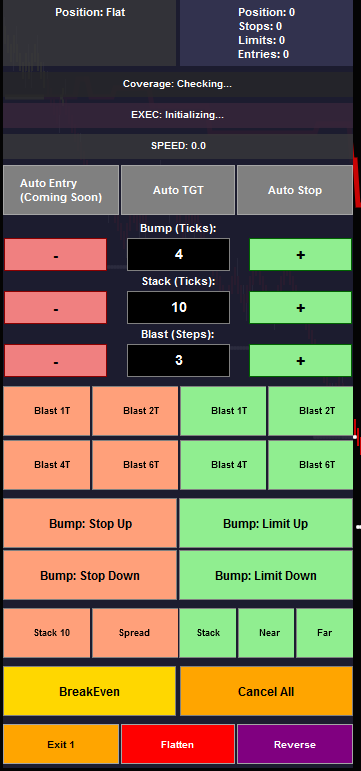
TrackerV5 OMS Widget showing all control sections (click to enlarge)
TrackerV5 in Action: Live Trade Example
Watch how TrackerV5 manages a real trade from entry to exit. This sequence demonstrates automated stop management, profit-taking, and position scaling in a live market environment.
Step 1: Initial Entry and Stop Placement
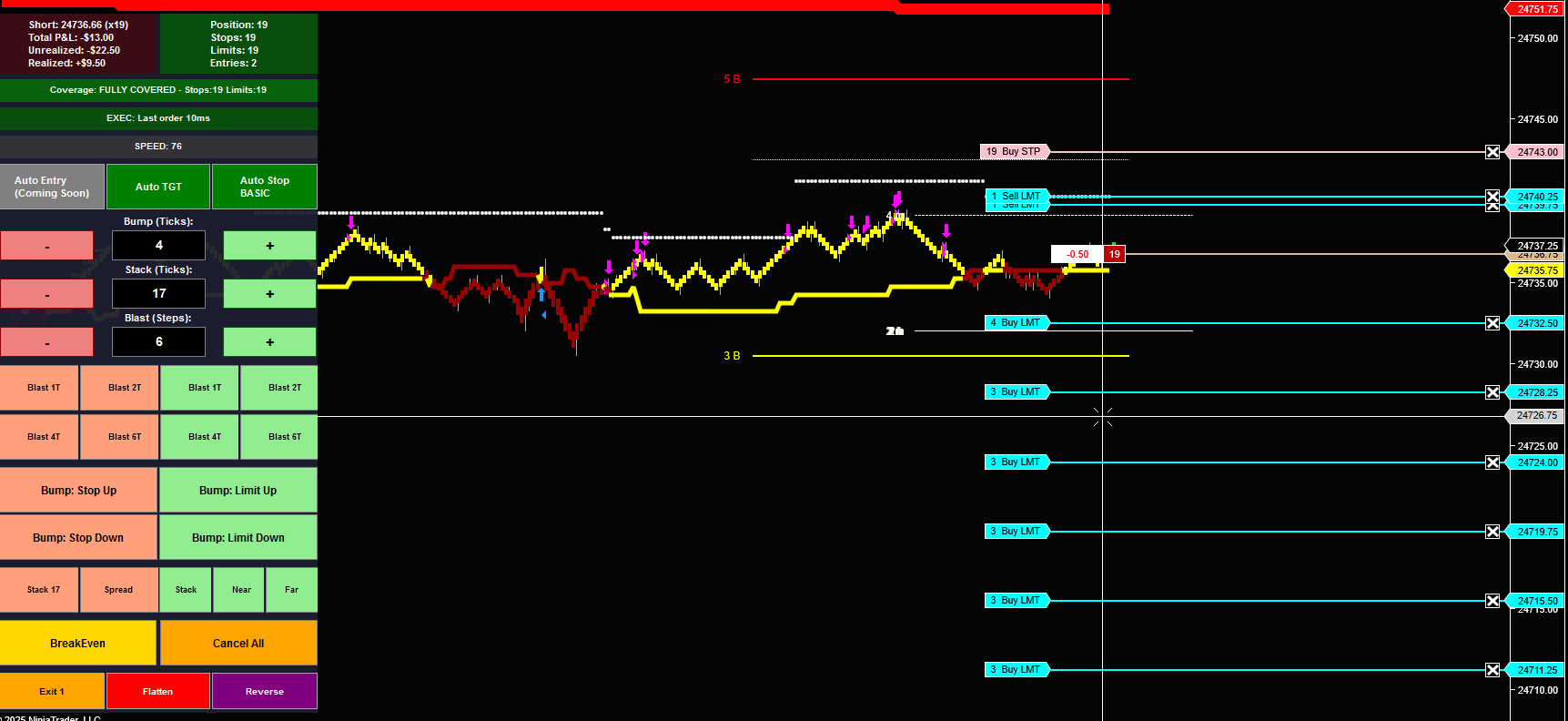
Trade initiated with position entry and initial stop loss placement (click to enlarge)
The trade begins with position entry and initial stop protection. Notice the widget shows active position size and stop orders working. The system is monitoring for the first profit target to be hit.
Step 2: First Target Hit – Automatic BreakEven
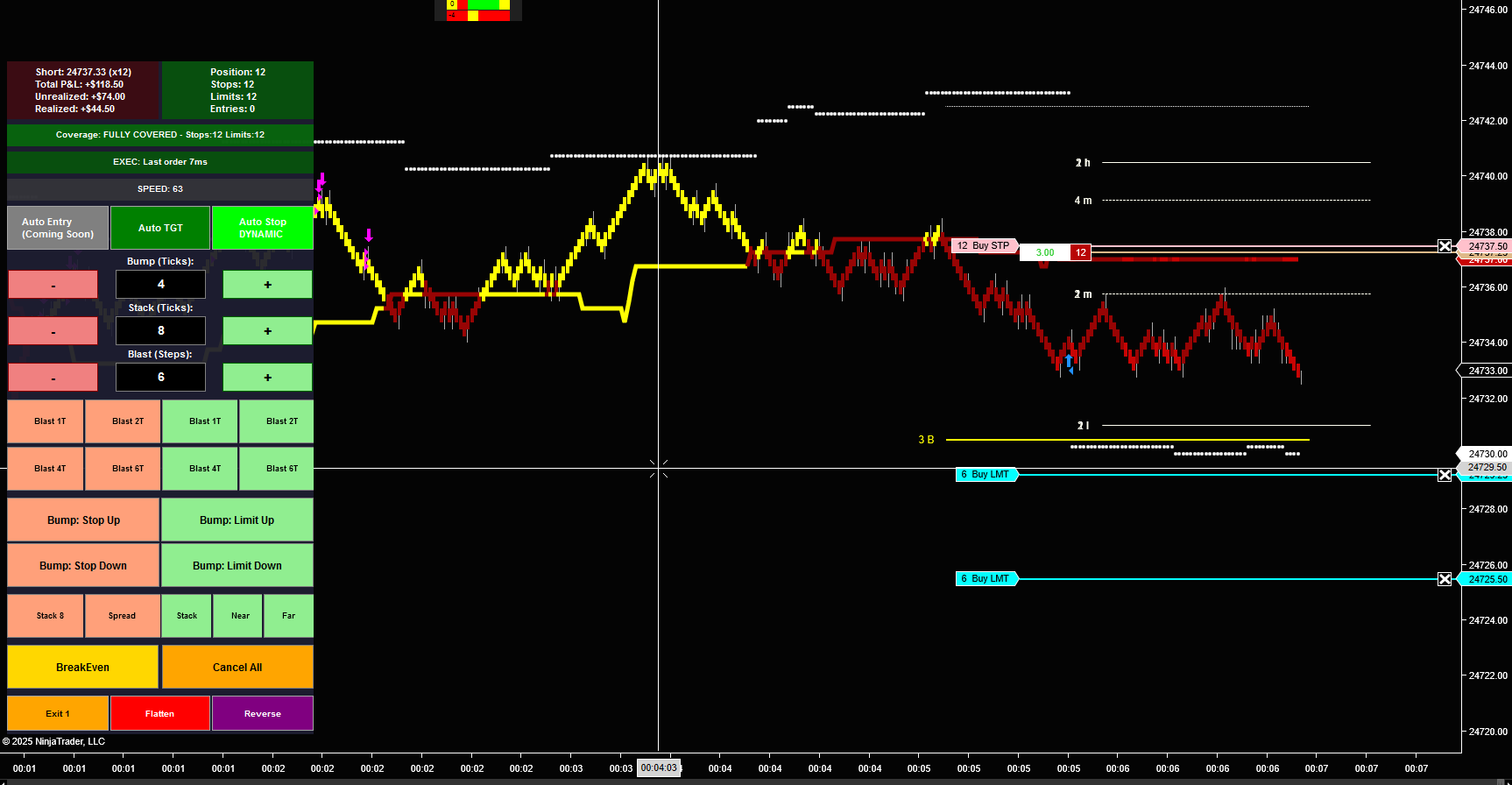
After initial target is hit, stops automatically move to breakeven – risk eliminated (click to enlarge)
Key Moment: Once the first profit target fills, TrackerV5’s Auto Stop feature automatically moves the stop to breakeven (entry price). The trade is now risk-free. This is professional-grade risk management executing without manual intervention.
Step 3: Continued Targets – Trailing Stop Activation
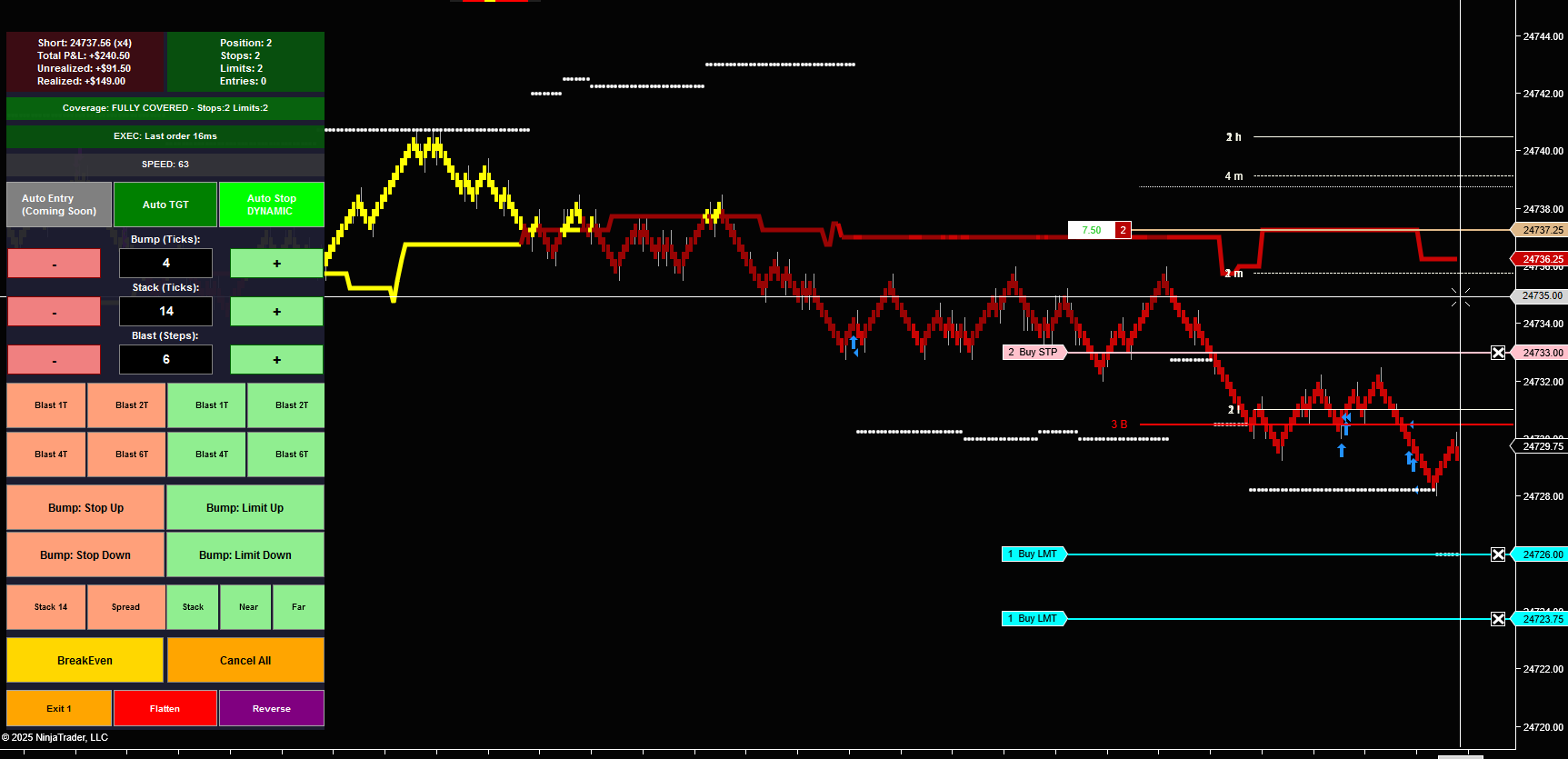
As additional targets are hit, stop trails down to lock in profits (click to enlarge)
As more profit targets fill, the stop continues to trail. Notice how the stop has moved down (for this short position) to lock in gains. The system is protecting accumulated profits while letting the winner run. Position size decreases as each target fills.
Step 4: Final Contract – Maximum Profit Protection
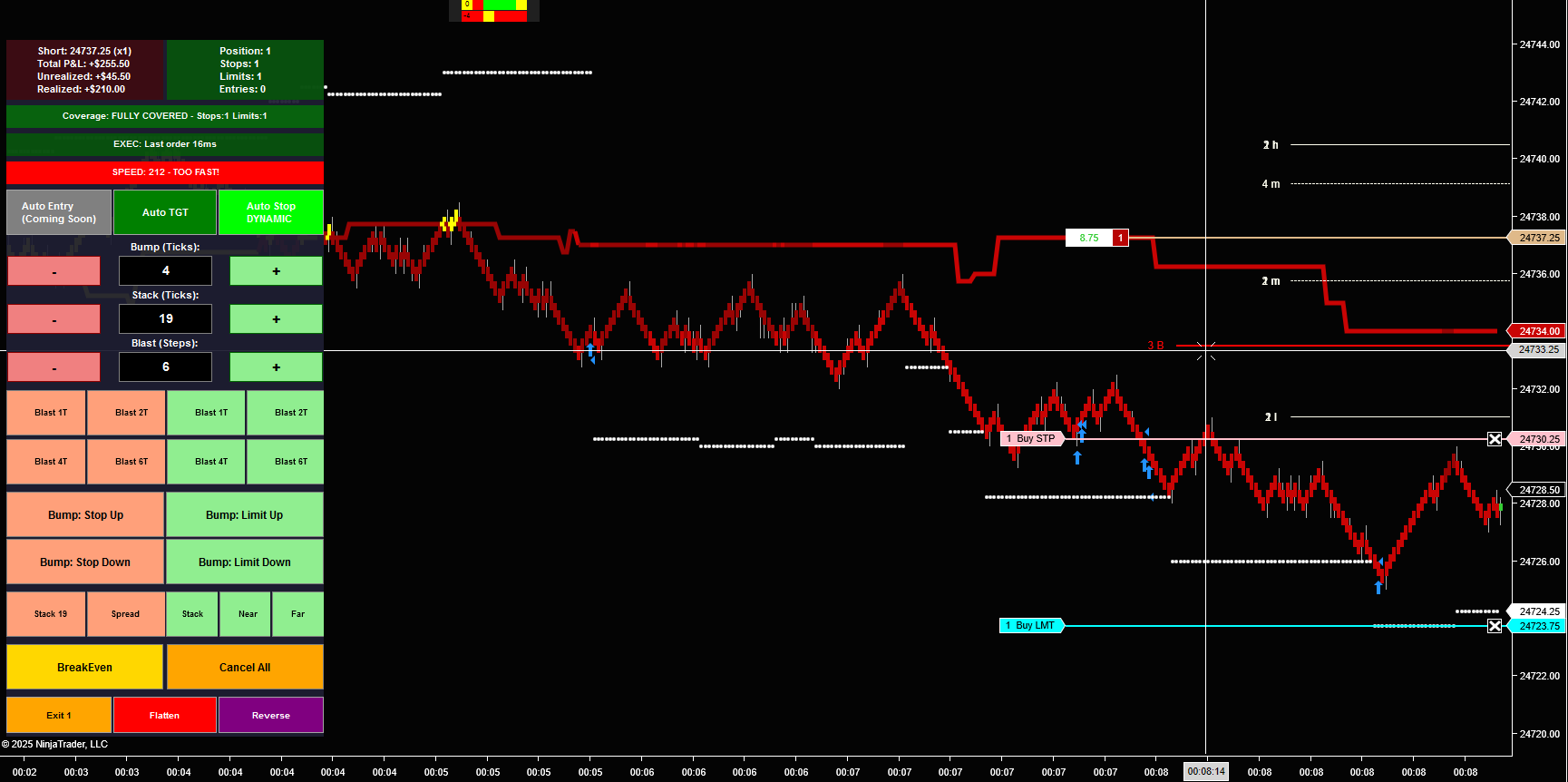
Down to 1 contract remaining with stop protecting substantial profit (click to enlarge)
The final stage: only 1 contract remains. The stop has trailed aggressively to protect the significant profit already captured. The widget shows “Position: Short 1” with the stop firmly in profit territory. This is how professional traders scale out of positions – taking profit along the way while giving the final piece room to capture extended moves.
• Protected the trade with initial stops
• Moved to breakeven after first target (eliminated risk)
• Trailed stops as more targets filled (locked in profits)
• Scaled position down systematically
• Kept final contract protected with tight trailing stop
All of this happened automatically through the Auto Stop and Auto TGT features. The trader set it up once and let the system manage the complexity.
The Professional Advantage
This type of trade management separates professional traders from amateurs:
- Amateurs: Hold full position hoping for best case, get stopped out on reversal, give back all gains
- Professionals: Scale out systematically, move to breakeven early, trail stops, protect profits, let final piece run
TrackerV5 automates the professional approach. You don’t need to watch every tick, manually adjust every stop, or make emotional decisions about when to take profit. Set your parameters, enable Auto Stop and Auto TGT, and let the system execute your strategy with discipline.
• Auto Stop: Enabled (handles all stop adjustments)
• Auto TGT: Enabled (manages profit targets)
• Stack(Ticks): Set for appropriate spacing
• Blast(Steps): Multiple exit levels configured
• TGT: Stack X: Possibly used to create the initial ladder exits
The system handled everything else. This is set-and-forget risk management at its finest.
What Sets TrackerV5 Apart
Professional traders need speed and precision. TrackerV5 delivers both through an intuitive interface that puts every order management function within immediate reach. No menus. No dialogs. Just instant execution.
- Blast Entry System: Enter positions across multiple price levels with a single click
- Intelligent Order Distribution: Automatically calculates optimal contract distribution across orders
- Stop & Target Management: Dynamic adjustment of stops and targets based on your Stack(Ticks) setting
- Position Monitoring: Real-time display of position size, stops, limits, and entries
- Advanced Exit Strategies: Stack orders, spread orders, or create ladder exits instantly
Widget Overview
The TrackerV5 widget is organized into logical sections, each designed for specific trading tasks. Understanding the layout helps you trade faster and more efficiently.
Status Section (Top)
Real-time position monitoring at a glance:
- Position: Current position (Flat, Long X, or Short X contracts)
- Stops: Number of active stop orders
- Limits: Number of active limit orders
- Entries: Number of active entry orders
- Coverage: Real-time calculation showing if stops cover your position
- EXEC: Execution status indicator
- SPEED: Order flow speed monitor for high-volume detection
Control Parameters
Three key settings control your order behavior:
Button Reference Guide
Every button explained with use cases and best practices.
Auto Management Buttons
Position Adjustment (Bump) Buttons
Blast Entry Buttons (Limit Entry and Exits Section)
Advanced Order Management (All Stops / All Limits Section)
Click TGT: Stack X → Creates:
• 3 contracts @ 5005.00 (entry + 5 ticks)
• 3 contracts @ 5010.00 (entry + 10 ticks)
• 3 contracts @ 5015.00 (entry + 15 ticks)
System handles contract distribution automatically, including odd numbers (e.g., 10 contracts = 3,3,4).
Quick Action Buttons
Hotkey System
Speed matters. TrackerV5 includes comprehensive hotkey support for all major functions.
Default Hotkeys
- Ctrl+Alt+UP: Bump Stop Up
- Ctrl+Alt+DOWN: Bump Stop Down
- Ctrl+Alt+RIGHT: Bump Limit Up
- Ctrl+Alt+LEFT: Bump Limit Down
- Ctrl+Alt+B: BreakEven
- Ctrl+Alt+E: Exit 1 (Partial)
- Ctrl+Alt+F: Flatten
- Ctrl+Alt+S20: Stack stops
- Ctrl+Alt+SPR: Spread stops
- Ctrl+Alt+SL: TGT: Stack X (NEW!)
- Ctrl+Alt+ETN: Each Tick Near
- Ctrl+Alt+ETF: Each Tick Far
- Ctrl+Alt+CA: Cancel All
All hotkeys are customizable in NinjaTrader indicator properties. Set them to match your existing workflow.
Trading Workflows
How to use TrackerV5 in real trading scenarios.
Workflow 1: Scalping with Tight Stops
- Set Blast(Steps) = 2 or 3 for quick entries
- Use Blast 1T or 2T (green/red) to enter near current price
- Enable Auto Stop for immediate protection
- Watch position fill, use Bump: Stop Up to trail quickly
- Hit Exit 1 to take partial profits on first move
- Use BreakEven hotkey (Ctrl+Alt+B) once up 4-6 ticks
- Let remainder run or Flatten (Ctrl+Alt+F) on reversal signs
Workflow 2: Swing Trading with Ladder Exits
- Enter position using wider Blast spacing (4T-8T)
- Set Stack(Ticks) = 10-20 for your target spacing
- Set Blast(Steps) = 3-5 for multiple exit levels
- Click TGT: Stack X to create ladder exit orders automatically
- Place stops manually or use Auto Stop
- Use Bump: Limit Up to raise targets as trend continues
- Let system scale out automatically as price hits each level
Workflow 3: Range Trading
- Use Blast 1T-3T to accumulate position at range lows/highs
- Set Stack(Ticks) to match range width divided by Blast(Steps)
- Enable Auto TGT for automated profit-taking at opposite range
- Use Each Near when price approaches target quickly
- Use Spread for stops across range to avoid single stop-hunt
- Cancel All and reverse if range breaks
Best Practices
Lessons learned from professional traders using TrackerV5.
Start Simple
Don’t try to use every button immediately. Start with:
- Basic blast entry (Blast 1T or 2T)
- Bump hotkeys for stop/target adjustment
- BreakEven and Flatten for basic management
Add advanced features (TGT: Stack X, Spread, Each Near/Far) as you become comfortable with the interface.
Match Settings to Market
Different instruments need different settings:
- /ES: Bump=4, Stack=8-12, Blast Steps=3-4
- /NQ: Bump=8-16, Stack=20-40, Blast Steps=4-5
- /YM: Bump=10-20, Stack=30-50, Blast Steps=3-4
- Stocks: Bump=0.05-0.10, Stack=0.10-0.25, Blast Steps=3-5
Simulation First
Test everything in simulation mode:
- Learn which buttons do what
- Practice hotkey muscle memory
- Test your settings with real market speed
- Develop your workflow before risking capital
Watch Coverage
The Coverage indicator at the top tells you if your stops cover your position. If you’re long 10 contracts but only have 7 in stops, coverage will show this. Always maintain adequate stop coverage or know why you’re not.
Speed Monitoring
The SPEED indicator detects unusual order flow velocity. High speed = potential momentum or news event. Be aware of execution quality in extreme speed conditions.
Installation & Setup
Getting TrackerV5 running on your NinjaTrader installation.
Requirements
- NinjaTrader 8 (latest version recommended)
- Active market data connection
- Chart Trader enabled on your chart
Installation Steps
- Download TradeAdapt_TrackerV5.cs from your account
- In NinjaTrader, go to Tools → Import → NinjaScript Add-On
- Select the .cs file and import
- Restart NinjaTrader to compile the indicator
- Add TrackerV5 to any chart from Indicators menu
Configuration
Right-click chart → Indicators → TradeAdapt_TrackerV5 → Configure:
- Position Panel Location: Choose TopLeft, TopRight, BottomLeft, or BottomRight
- Button Height: Adjust for your screen resolution (default: 25-30)
- Panel Width: Wider = more readable, narrower = less screen space
- Enable Hotkeys: Turn on/off hotkey system
- Customize Hotkeys: Set each hotkey to your preference
- Default Values: Set default Bump, Stack, and Blast Steps
Troubleshooting
Common issues and solutions.
Buttons Not Responding
- Ensure Chart Trader is enabled on your chart
- Check that you have an active connection to your broker
- Verify the instrument supports the order types (some instruments don’t allow limit orders)
Hotkeys Not Working
- Check if Enable Hotkeys is turned on in indicator properties
- Verify your hotkey combination doesn’t conflict with NinjaTrader native hotkeys
- Chart window must have focus for hotkeys to work
Orders Not Placing
- Verify you have Chart Trader enabled (required for order submission)
- Check your account has sufficient buying power
- Confirm the instrument is trading (market hours)
- Review NinjaTrader Log for error messages
Widget Not Appearing
- Confirm indicator is added to chart (Indicators menu)
- Check if ShowPositionControlPanel is enabled in properties
- Try different position locations (TopRight, BottomLeft, etc.)
- Verify NinjaTrader compiled the indicator without errors (Tools → Output Window)
Support & Resources
Getting help and staying updated.
Documentation
Visit TradeAdapt.ai for:
- Video tutorials and setup guides
- Advanced strategy documentation
- Indicator property explanations
- Code documentation (open source)
Community Support
Join our trading community for:
- Strategy discussions and workflow ideas
- Troubleshooting help from other users
- Feature requests and feedback
- Market-specific configuration recommendations
Updates
TrackerV5 receives regular updates with:
- New features based on trader feedback
- Bug fixes and performance improvements
- NinjaTrader compatibility updates
- Additional order management capabilities
RISK DISCLOSURE & DISCLAIMER
TRADING INVOLVES SUBSTANTIAL RISK OF LOSS
Trading futures, forex, stocks, and other financial instruments involves substantial risk of loss and is not suitable for every investor. The high degree of leverage can work against you as well as for you. You should carefully consider whether trading is suitable for you in light of your circumstances, knowledge, and financial resources.
Only risk capital should be used for trading. Risk capital is money that can be lost without jeopardizing one’s financial security or lifestyle.
THIS SOFTWARE IS A TOOL, NOT A GUARANTEE
TrackerV5 is an order management tool designed to help you execute your trading decisions more efficiently. It does NOT:
- Make trading decisions for you
- Guarantee profits or prevent losses
- Replace proper risk management and trading knowledge
- Ensure successful trades or prevent bad trades
NO WARRANTY
The software is provided “as is” without warranty of any kind, either express or implied, including but not limited to warranties of merchantability, fitness for a particular purpose, or non-infringement. TradeAdapt.ai does not warrant that the software will be error-free, uninterrupted, or meet your requirements.
USER RESPONSIBILITY
YOU are responsible for:
- All trading decisions and their outcomes
- Understanding how each button and feature works before using with real money
- Testing all functionality in simulation mode first
- Verifying all orders before and after execution
- Maintaining proper risk management at all times
- Understanding the markets you trade and the risks involved
AUTOMATED FUNCTIONS
Features like Auto Stop and Auto TGT automate order placement based on your settings. While designed to help manage risk, automated systems can malfunction. Always:
- Monitor automated functions actively
- Have manual override capability ready
- Test automated features extensively in simulation
- Understand that technology can fail
MARKET RISKS
Be aware of:
- Slippage: Orders may fill at different prices than expected, especially in fast markets
- Gap Risk: Markets can gap through your stops, resulting in losses larger than planned
- Liquidity: Not all markets have sufficient liquidity for all order sizes
- Connectivity: Internet or broker connection issues can prevent order management
LIMITATION OF LIABILITY
In no event shall TradeAdapt.ai, its owners, developers, or affiliates be liable for any direct, indirect, incidental, special, consequential, or punitive damages arising out of or relating to your use of this software, even if advised of the possibility of such damages.
This includes but is not limited to:
- Trading losses of any kind
- Software bugs or malfunctions
- Missed trading opportunities
- Incorrect order execution
- Data loss or corruption
TESTING REQUIREMENT
CRITICAL: You MUST test TrackerV5 thoroughly in NinjaTrader’s simulation mode before using it with real money. Understand every button, every hotkey, and every feature. Practice until the workflow is second nature. Real money trading without thorough testing is reckless.
SEEK PROFESSIONAL ADVICE
This software and documentation do not constitute investment advice. Consult with a licensed financial advisor, attorney, or tax professional before making investment decisions.
By using TrackerV5, you acknowledge that you have read, understood, and agree to this entire disclaimer and risk disclosure.
You further acknowledge that:
- You understand trading involves substantial risk
- You have tested the software in simulation mode
- You are solely responsible for all trading decisions
- You will not hold TradeAdapt.ai liable for any losses
- You are using this software at your own risk
© 2025 TradeAdapt.ai | All Rights Reserved
TrackerV5 OMS Widget | Version 5.0